Cyber Monday DealGet the deal
Back
Last updated: 1 min read

How to reinstall the VPN profile on iPhone and iPad

Can't connect even after switching locations or protocols? Your VPN profile might be out of date or damaged. You can replace it with a fresh one in a few taps—no need to delete the app. This article shows you how to do that from your Home Screen.
What you'll need

  • VPN Super for iOS, version 2.61.0 or later
  • About a minute

How to reinstall from your Home Screen

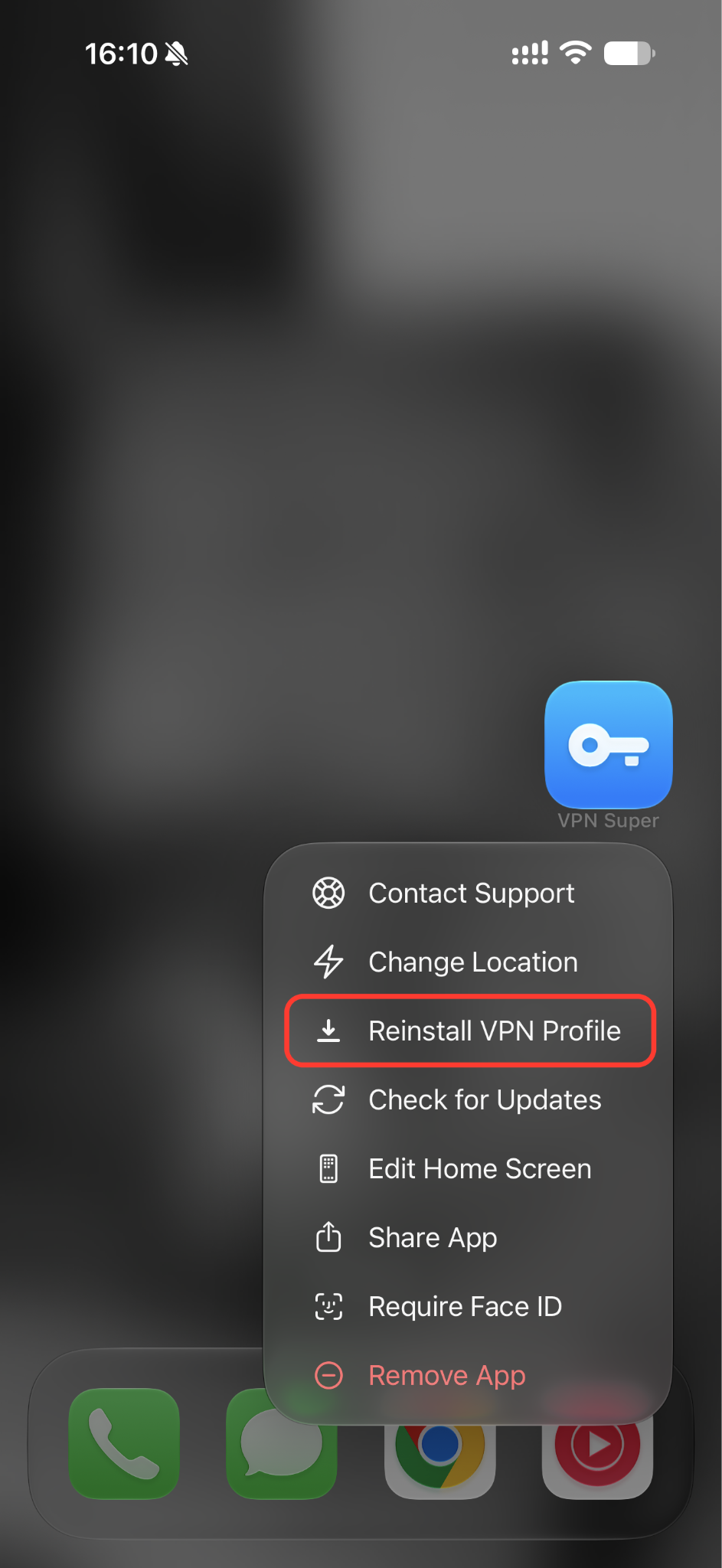
iOS Home Screen quick-action menu with Reinstall VPN Profile highlighted
  1. Press and hold the VPN Super icon on your iOS Home Screen.
  2. Tap Reinstall VPN Profile.
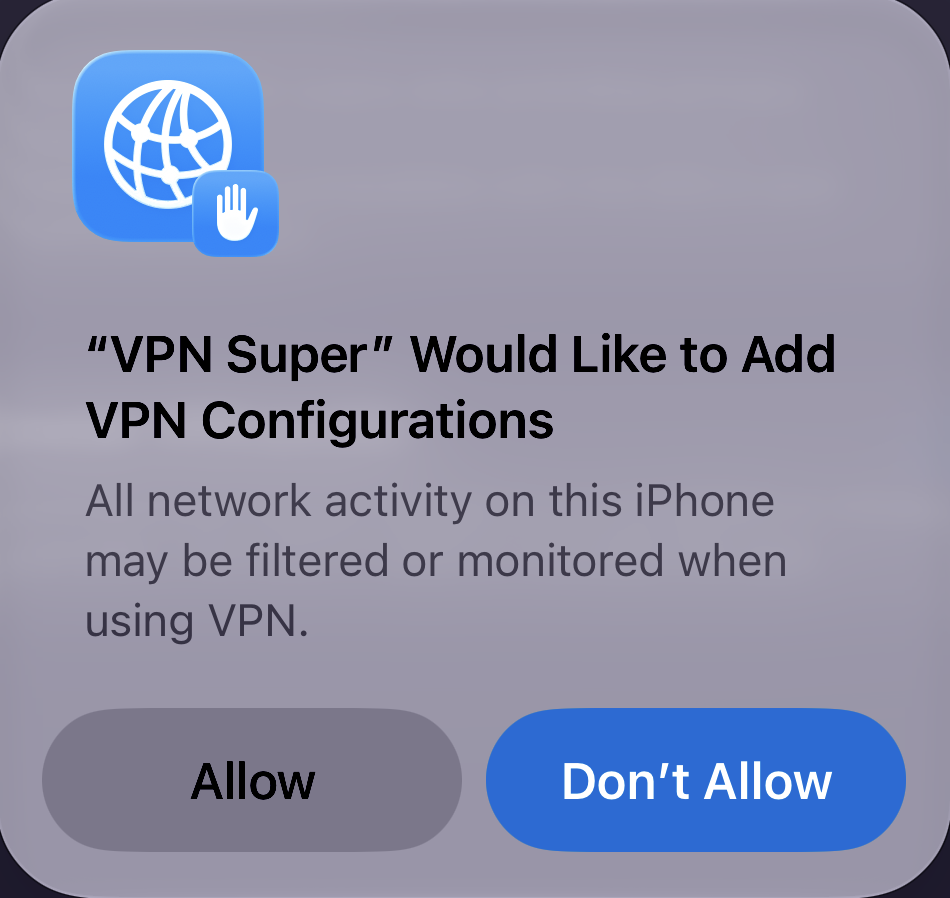
  3. Tap Allow when iOS asks to add VPN configurations.
iOS prompt to allow VPN Super to add VPN configurations

What happens next

  • If you were connected: VPN Super disconnects, installs the new profile, and reconnects you to the same location automatically.
  • If you weren't connected: You'll see Ready to connect. Tap Connect and you're good to go.

Your account, subscription, and app settings stay the same. Only the VPN profile is replaced.

Frequently asked questions

I tapped "Don't Allow" by mistake. What now?

No problem. Run the reinstall again, or just tap Connect and choose Allow when iOS asks.

I see "Something went wrong." What should I do?

Try to reinstall VPN Super. If it still doesn't work, please submit a request to our Support Team.

For more fixes, see Can't connect to VPN Super.

Still not working?

If you still can't connect after reinstalling, submit a request to our Support Team and we’ll help you get back online.

Was this article helpful?

Still need help?

If you can't find what you're looking for, we're here to help.

Submit a Request